I grew up as a young professor lecturing on blackboards and I loved sliding sets of huge boards up and down and covering myself in chalk as I worked through a complex derivation. But these days I’ve fully converted to writing on a tablet and I can’t imagine going back, for many reasons that I explain below.
Why tablets for lecturing?
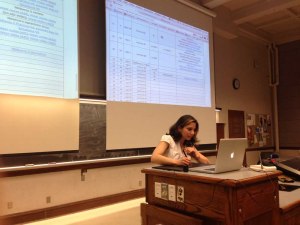
For large classes the choice of tablets is easy. Our large lecture theaters either don’t have boards at all (e.g., GH 112 where Mariana and Gabe teach Introductory Statics), or the rooms are too big for effective board use. Even in smaller rooms I prefer a tablet because it makes it easy to weave together online material (course webpages, videos), pre-prepared examples (problem setups), real-time writing, and active learning (iclickers). Additionally, students appreciate lecture PDFs and lecture recordings as standard uploads after class.
Using a tablet routinely also makes it very easy to create extra videos out of class time. Geir uses this to avoid canceling or rescheduling class while traveling, because he easily records a lecture in his office (or hotel room, in a pinch) using exactly the same system as regular lecture. This technique also works well for uploading short videos for things like explaining homework problems.
There are two big downsides to tablets, however. First, increased technical complexity. It’s no fun to have 300 students getting increasingly noisy while you reboot for the third time in a row, although this almost completely goes away with good hardware and a bit of practice. The second big downside is that the effective writing area of a tablet is much smaller than an array of six or more blackboards. This is mainly a problem for long, complex problems, and for referring back to earlier results. Dealing with this is possible, but I had to change my writing style a little to copy earlier results and provide more outlines of structure. For my lecturing neither of these downsides outweigh the upsides of tablets.
Writing in real time, not just PowerPoint slides
I find that the most effective tablet-based lectures combine a variety of media types, both online and offline. A video showing a real-world application is a great way to get started, and then it’s easy to flip to a pre-written summary of last lecture or an overview of what’s coming today.
Some people like Randy are such fast writers that they can write out a whole lecture on the fly, but for most of us it’s better to use a mixture of pre-prepared material and real-time writing. Good things to pre-prepare include problem setups, iclicker questions, and topic summaries, while real-time writing is best for solving problems where the logic needs to be discussed in detail.
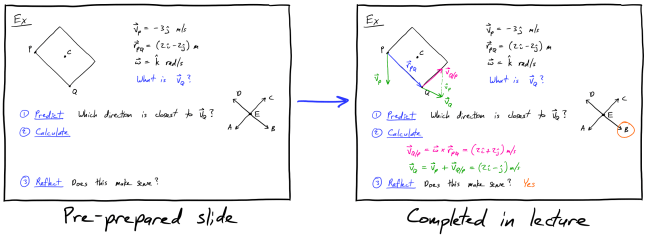
There are a number of helpful cognitive science principles for lecturing with tablets. One key idea is that the human brain struggles to simultaneously process input in the three modalities of graphics, spoken audio, and written text. This often results in students tuning out the lecturer’s spoken explanation to focus on reading material on screen. The modality effect and redundancy principle suggest that the best combination is clear graphics with spoken explanations, while the multimedia principle says to at least use only two of the modalities simultaneously. My experience supports this, and I try to minimize the amount of pre-written material and to use color or other guides to help students focus on important information.
Windows-based tablets
The most popular Windows tablet at the moment is the Microsoft Surface Pro. It has a good pen, is lightweight, and runs all the usual Windows software. The TAM SIIP team mainly uses Surface Pros (Randy, Yuhang, Mariana K, Gabe, Mariana S), as does most of the MatSE SIIP team (Cecelia, Kris, Robert, Jessica).
For software, Microsoft OneNote is best for writing-intensive lectures, while PowerPoint is also pretty good with the pen tools these days.
The Surface Book also looks appealing, but Dallas tells me that it’s still going through the early-release phase of unstable drivers, and Randy reports that the detachable keyboard makes it harder to use than the Surface Pro (to which he’s reverted). There are many other good Windows tablets/laptops (e.g., Geir likes the Fujitsu T904 Lifebook), but there are also lots of bad ones with inaccurate digitizers or weird quirks like buttons that are easy to hit while writing.
Mac/iPad tablets
I’m fully invested in the Apple ecosystem, but I have to admit that the Apple story for tablets is not as good as the Windows side at the moment.
I currently use the iPad Pro 12.9″ for lecturing, with the beautiful Apple Pencil. This is the only iPad worth using for writing, because every iPad before the Pro has low-resolution digitizers that don’t work well with pens. The main downside of the iPad is that there is no lecture capture or iclicker software available for it. To get around this, Jeff routes his iPad through his Macbook using QuickTime (already installed), which he also uses for lecture recording. My current solution is to connect the iPad to my Macbook and run lecture recording (Echo360 Personal Capture) and iclicker instructor software on the Macbook. Good lecturing software on the iPad includes Notability (used by Jeff) and GoodNotes (my current favorite). The latest version of PowerPoint on iOS looks almost usable, except the presentation annotation tools are unworkably bad, and OneNote on iOS looks good but I don’t know anyone using it.

Another approach for tablets and Macs is to use a Mac laptop with an external Wacom tablet. These are the traditional highest-quality tablets used by graphic artists and are really nice. The Intuos range requires a few hours of practice because you look at the screen while writing on the tablet (just like a mouse, it’s really not so bad!). I used this before switching to the iPad Pro, and Elif uses one at the moment. André uses a Cintiq 13 HD, which is like an external monitor that you can write on. This is very nice, but it’s as heavy as a laptop and requires a slightly complex set of cables. The best software we’ve discovered for writing with tablets on Macs is the open-source and slightly old-school xournal, which doesn’t look so slick but works amazingly well in practice.
Wireless for walking around
About a year ago I was motivated by Carl Wieman’s visit to Illinois to think about walking around the lecture theater and talking directly to individual students during iclicker sessions. It was initially scary to leave my security blanket of the podium, but walking all around the room really helps to make it feel more intimate and connected.
Tablets can help with this if they are wireless, allowing the screen to be controlled from anywhere. The Surface Pro has built-in support for Miracast, which means that you can buy a Microsoft Display Adaptor v2 that plugs into the in-class projector input to enable direct wireless streaming. Cinda uses this system in Siebel 1404 and reports that it works well. Gabe uses it in GH 112, also with good performance, and I’ve seen him handing his Surface to students to solve a problem on the big screen while he continues to talk and explain.
Macbooks and iPads can use AirPlay to stream to an Apple TV installed in lecture theaters, but this uses the in-room WiFi and my experience with it in MSEB 100 hasn’t been very good. At the current time I’ve given up on wireless streaming and reverted to an HDMI cable.
What do you use?
I’d love to hear other solutions that you have found or questions about who’s doing what. Post a comment to let me know!
 Education at Scale
This post is rather old…I expect you’ve upgraded your hardware/software since 2016. What are you using now in 2022?
LikeLike